
.svg)
Driftrock Auto Responders
Overview
Driftrock Auto Responders are automated emails triggered instantly when a lead or event enters the platform. They are designed to provide immediate communication to a prospectsuch as a lead receipt confirmation or the delivery of requested digital assetsbridging the critical gap between a customer's digital interest and a human sales follow-up.
Why Use Auto Responders?
Automotive marketers often face high lead drop-off rates because a buyer's interest is highest in the minutes immediately following a form submission. If a lead waits hours or days for a salesperson to make contact, their intent wanes, or they engage with a competitor.
By using Auto Responders, you guarantee that 100% of leads receive a touchpoint within seconds of submission. This immediate, personalized engagement helps foster trust, keeps the lead warm, and measurably increases lead-to-sale or lead-to-appointment conversion rates.
Key Features
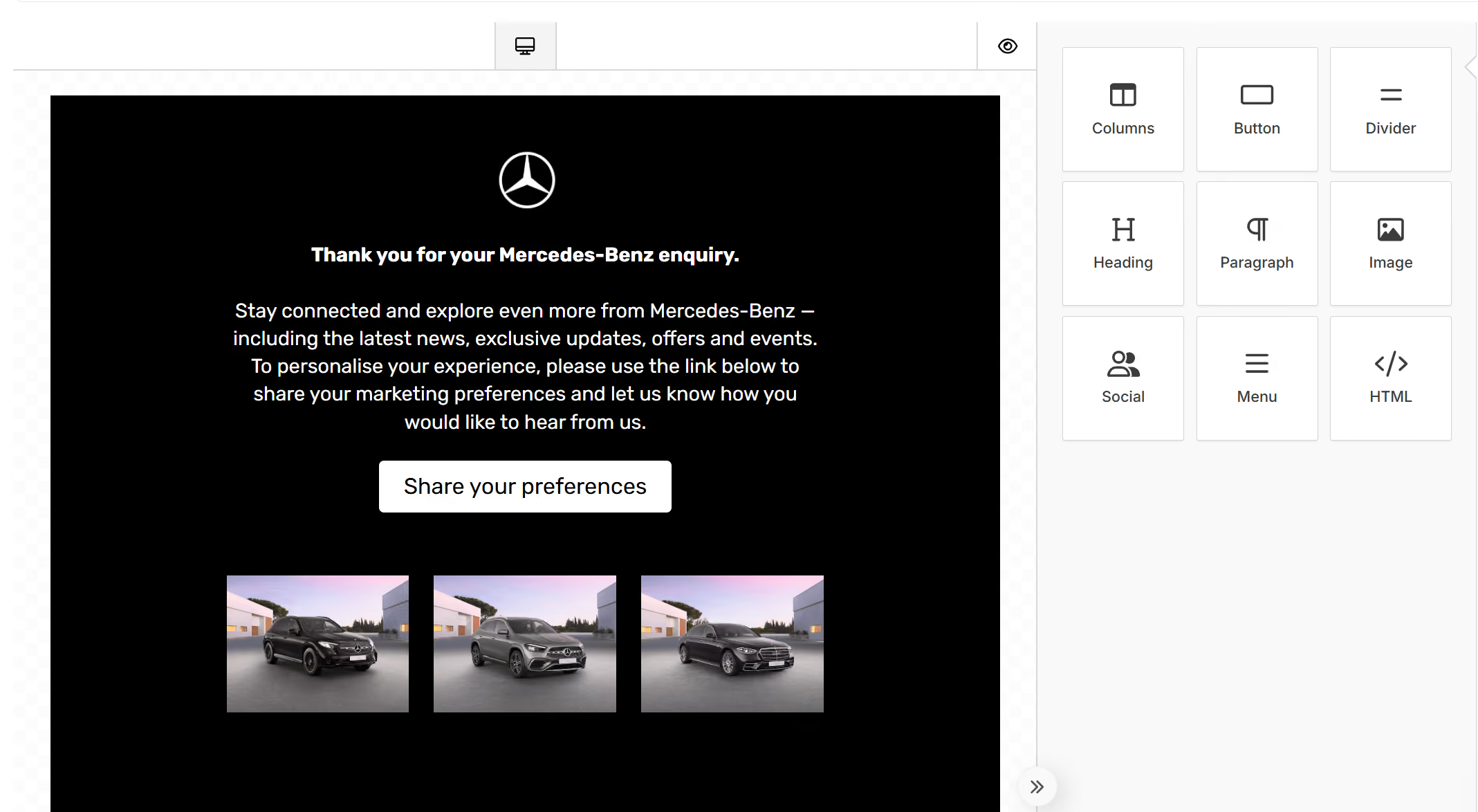
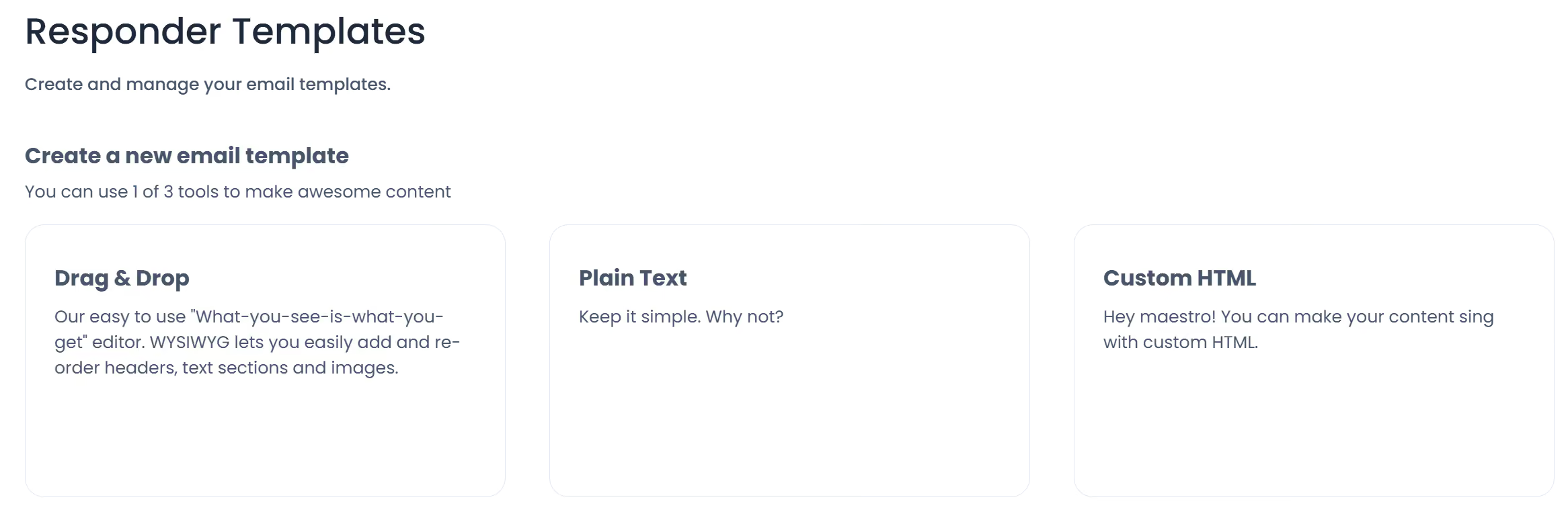
- Flexible Building Tools: You can build emails using a drag-and-drop builder for speed, raw HTML for complete design control, or plain text for a more personal, one-to-one feel.
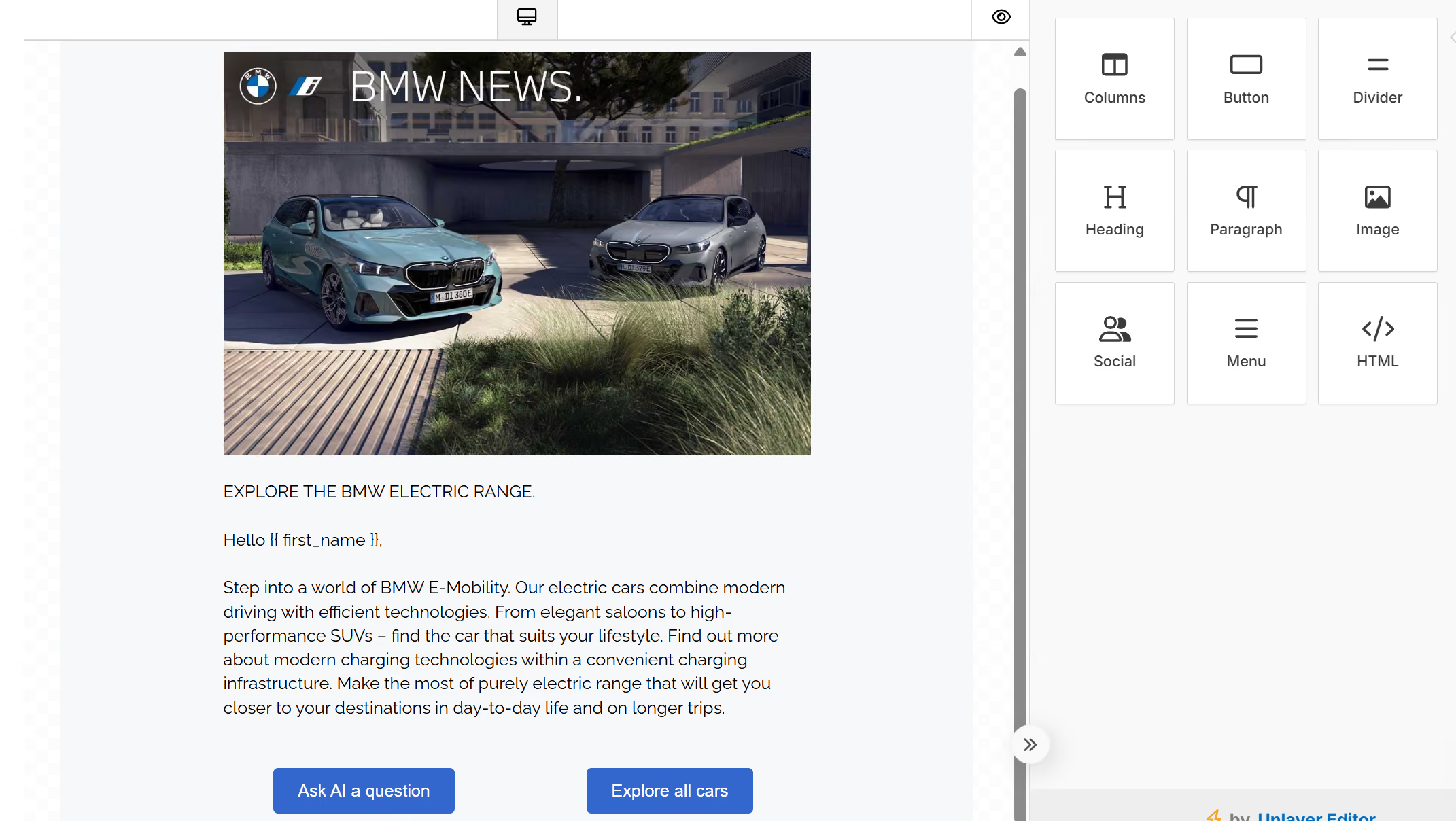
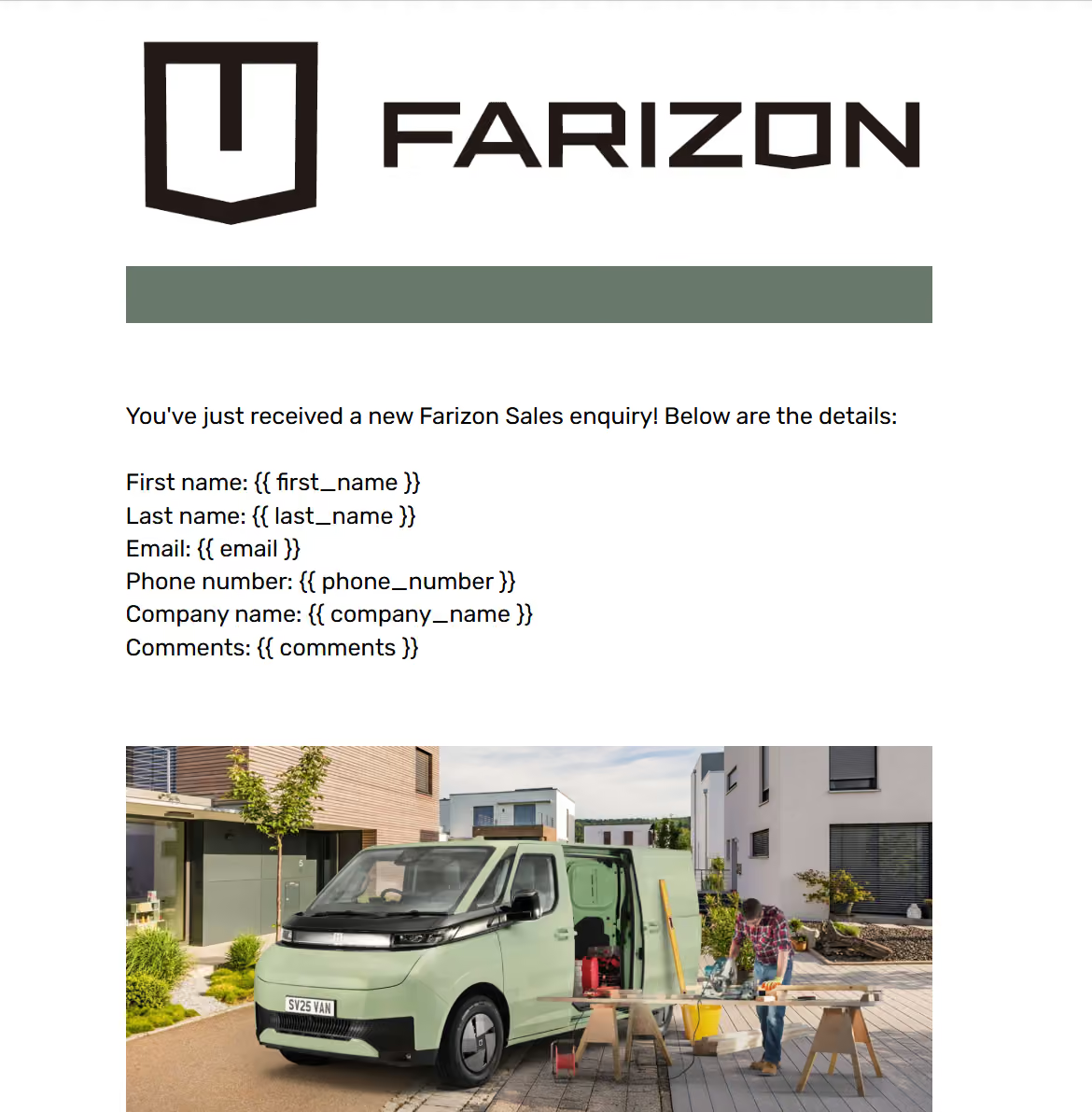
- Deep Personalization: Using dynamic fields (merge tags), you can automatically inject captured lead data—such as
{{ first_name }},{{ model_of_interest }}, or{{ preferred_time }}—directly into the email's subject line or body. - Conditional Logic (Routing Rules): You can determine exactly when an Auto Responder should fire. For example, you can set a routing rule to send a specific email only if the lead selected "Electric" as their powertrain preference.
- Branded Deliverability: Connect your custom domains to ensure emails are recognized as coming directly from your brand, which enhances customer trust and improves open rates.
- Centralized Template Management: Store and manage your Responder Templates in one place to maintain brand consistency across multiple campaigns.
Common Use Cases
- Brochure Delivery: Instantly emailing a digital brochure to a user who requested it via an ad on Facebook or LinkedIn.
- Test Drive Confirmation: Sending a quick summary of the user's preferred test drive date and time to confirm their request.
- Event Confirmation: Instantly delivering entry details or QR codes right after a user signs up for a physical motor show or dealer event.
- General Lead Nurturing: Providing additional vehicle specs or "Why Buy" content to keep the prospect engaged while they wait for a dealer to call them.
--------------------------------------------------------------------------------
Step-by-Step Setup Guide
To set up an Auto Responder on one of your campaigns, follow these steps:
- Navigate to Capture: Go to Your Captures and select the campaign you want to add an email to.
- Access Automations: Proceed to the Automate step of the capture setup.
- Add Auto Responder: Select Auto Responders from the destination types.
- Choose or Create Template: Select an existing template or click to build a new one using the HTML or drag-and-drop editor.
- Configure Sender Details: Set your Subject Header and ensure your Custom Domain is selected for the "From" address.
- Apply Routing Rules (Optional): Toggle Route by custom rules to ON if you only want the email to send to leads meeting specific criteria.
- Map Dynamic Fields: Ensure any personalization tags in your template are correctly mapped to the incoming lead fields.
- Save and Activate: Review the automation and set it to Active.
--------------------------------------------------------------------------------
Troubleshooting & Best Practices
- Emails are landing in Spam / Not Delivering: Ensure your custom domains have SPF/DKIM properly configured in your DNS records. If your domains are not properly set up, Auto Responders may have low deliverability or land in junk folders. Also, verify that your capture does not have routing rules that are accidentally blocking the leads.
- Personalization tags are showing up blank: If a tag like
{{ first_name }}is blank in the delivered email, check the Field Mapping in Step 2 of your Capture setup. You must ensure the incoming source field is correctly mapped to the Driftrock standard field for the data to populate.